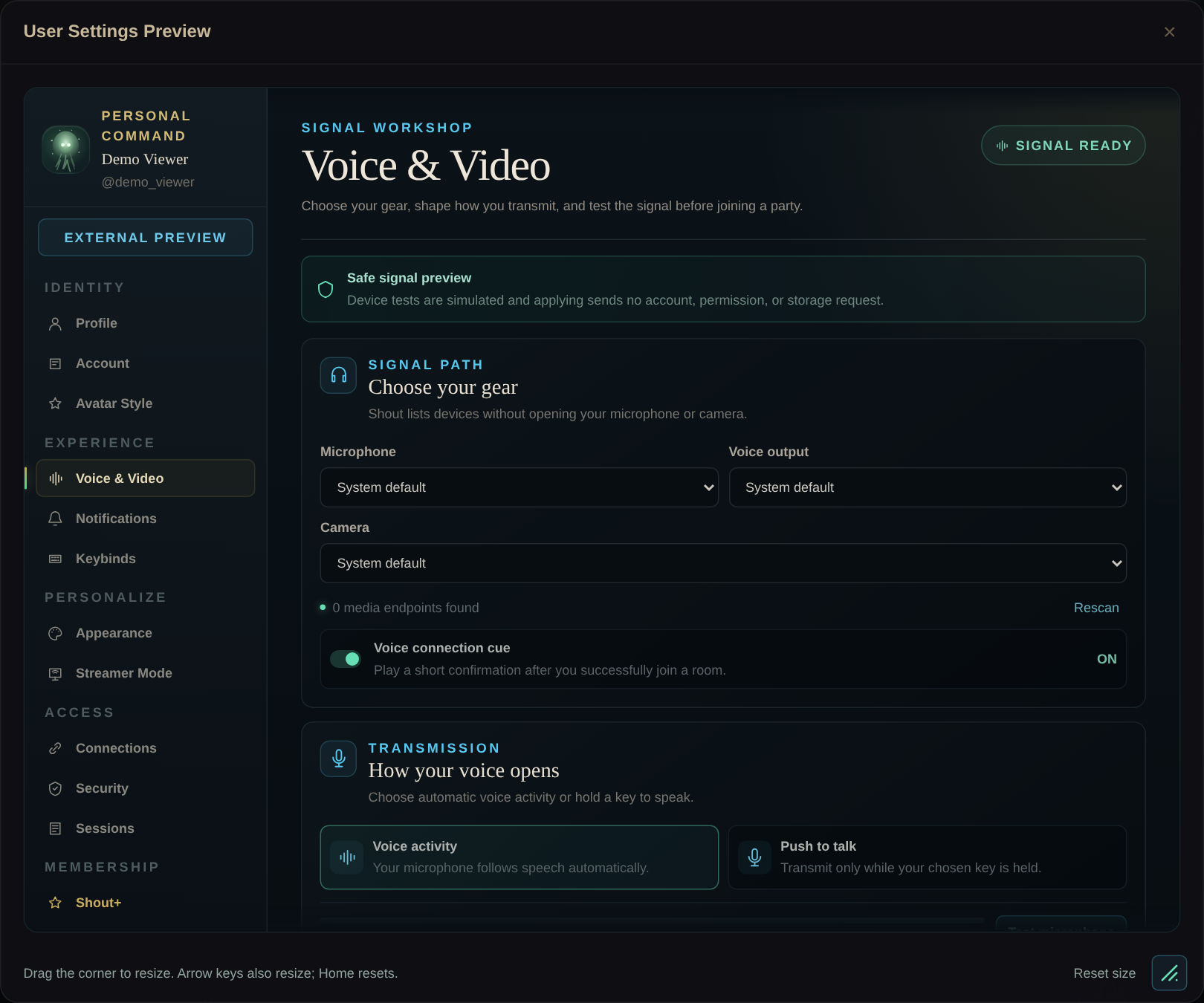
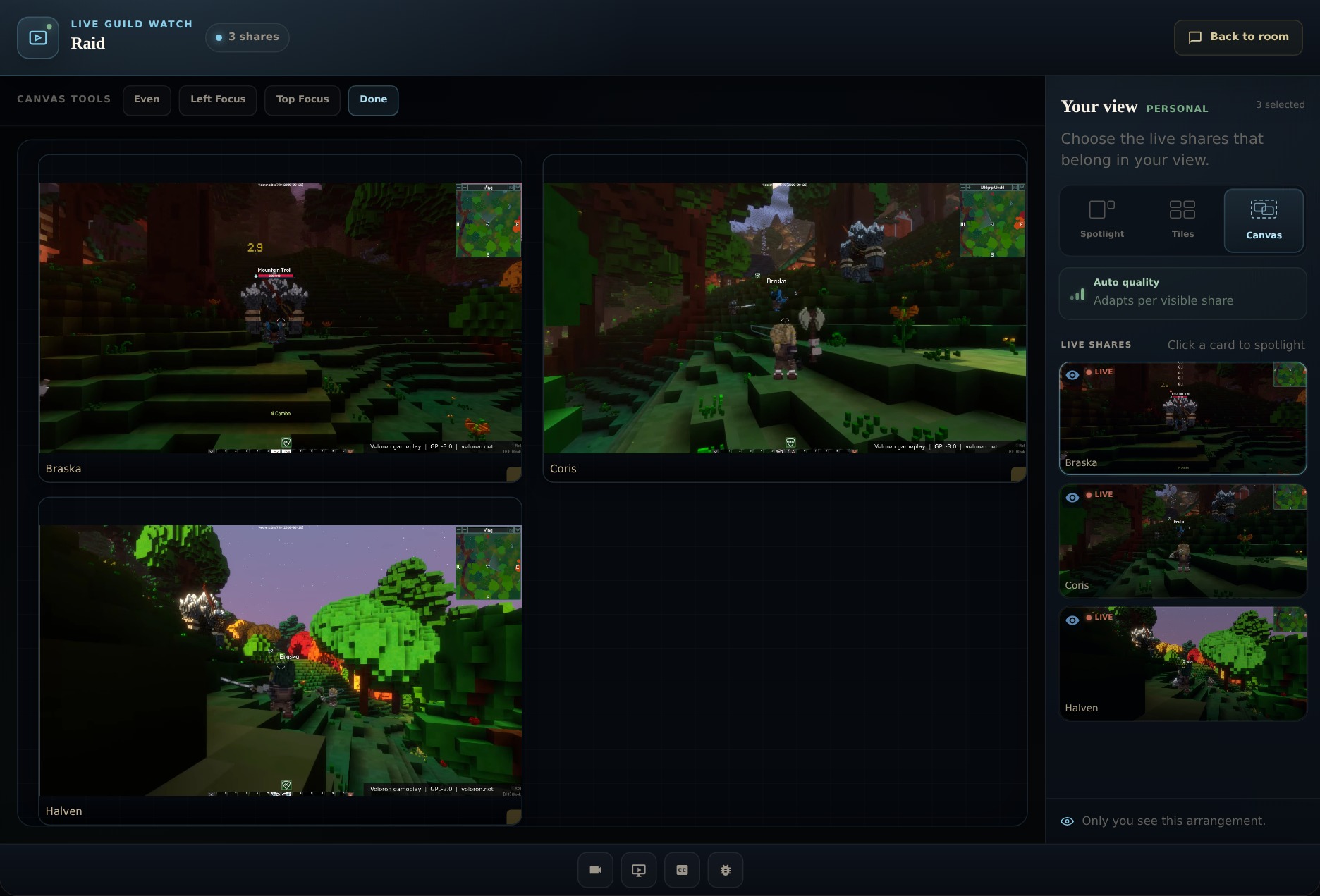
Choose who needs to hear you.
Your main raid and its party rooms form one connected voice tree. Use a focused call for one group, or a broader call when several parties need the same instruction.
Intercom + PTT
Choose Intercom beside a linked room, then hold its PTT button while speaking.
A /shout shortcut
Assign a key to one linked room or Parent + all parties in Settings → Keybinds.
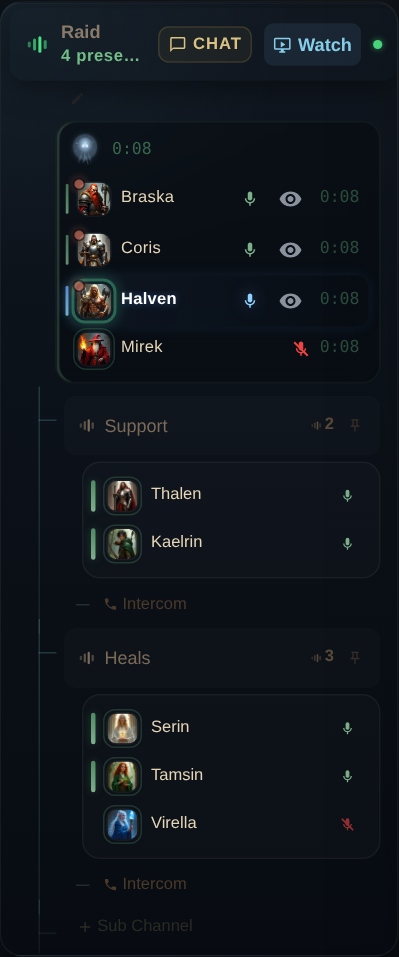
Example structure · /shout follows your current voice tree and permissions.
Reach a linked room without moving.
- Join a voice room. Choose the main room or one of its linked parties from the guild map.
- Choose the destination. In the main room, use Intercom under the party you want. From a party, the parent-room Intercom control lets you reach the main room.
- Hold PTT to speak. Once the link is ready, hold the PTT button beside it. The tooltip reads Hold to talk, or Hold to talk in parent channel.
- Release when you finish. Releasing PTT stops that transmission. Choose End to close the intercom link.
Try this: From Raid, contact Support for a short status update while keeping your place in the main room.
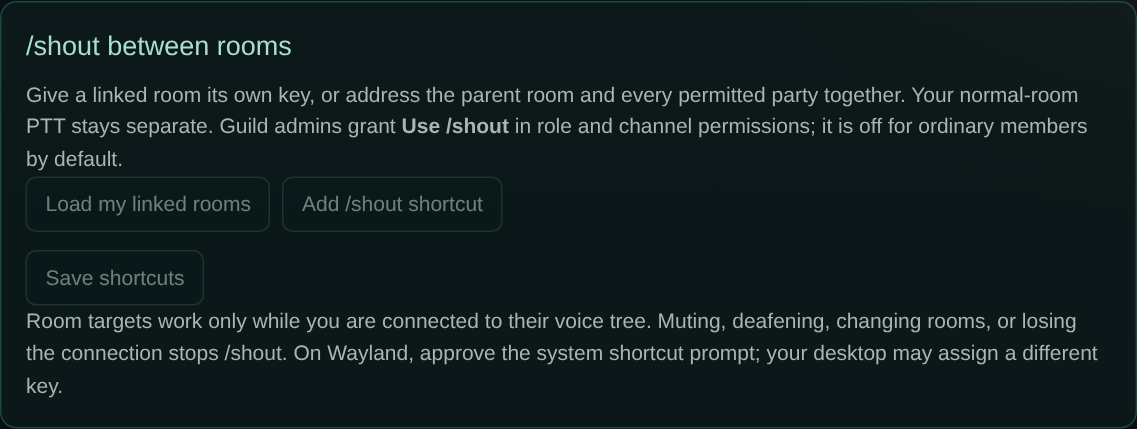
Put a wider call on a key.
A dedicated shortcut is useful when you need to coordinate while playing. Your normal room’s push-to-talk key stays separate.
- While connected to the relevant voice tree, open Settings → Keybinds.
- Find /shout between rooms and choose Load my linked rooms.
- Choose Add /shout shortcut. Set the destination to a listed room or Parent + all parties.
- Select Choose a key and press your preferred key or chord. Choose Save shortcuts.
- Hold that shortcut to transmit. Release it to stop. Check the status shown in Keybinds to see how shortcuts work in your current browser or desktop client.
Give the right people permission.
Guild administrators control Use /shout through role and channel permissions. It is off for ordinary members by default. Give the people coordinating the group access to the rooms they need.
A Parent + all parties destination covers permitted rooms in the current voice tree. It does not turn every unrelated channel or guild into one broadcast.
Your microphone and listening state also matter. Muting, deafening, changing rooms, or losing the voice connection stops an active /shout transmission.
Get back to the conversation.
I cannot see an Intercom control.
Join a room in a parent-and-party voice tree, then check the linked rooms in the guild map. A standalone room has no parent or party destination to show. Ask a guild administrator to confirm the room structure and your permissions.
The link or shortcut will not transmit.
Confirm that you are still connected, your microphone is available, and you are not muted or deafened. Check Use /shout permissions and any error message. Release the key or PTT button before retrying.
It works in Shout but not while my game is focused.
Open Settings → Keybinds and read the shortcut status. Browser shortcuts need Shout focused. For desktop shortcuts, use a supported current client and complete any system permission prompt.
Can I test live intercom audio in the public demo?
The public demo lets you inspect the room structure and controls. Its voice join and settings previews are illustrative. Use a signed-in, supported guild session for a real microphone and intercom check.
Pictures show Shout’s real interface with a demonstration guild and profile. Demo settings use “Apply preview” and simulate device tests; your signed-in account uses its live settings. Controls can vary with client version and permissions.