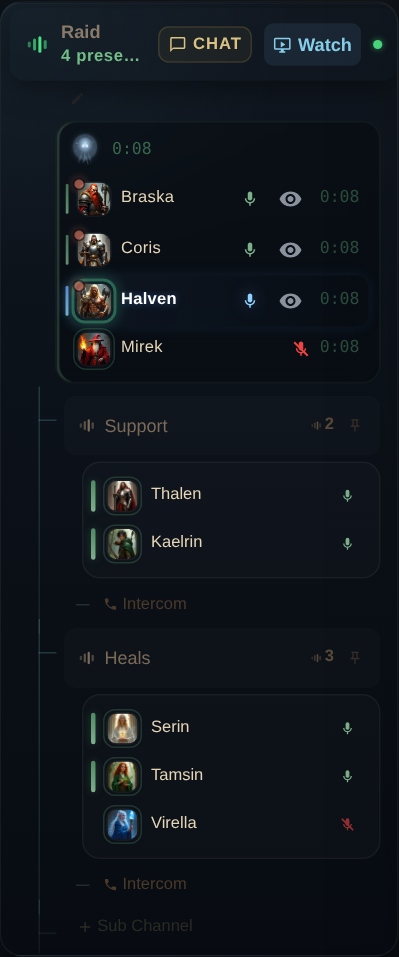
Open the live shares.
Find a voice room with live streams in the guild map. Choose its Watch button, then select Watch streams or a live share in the room’s preview.
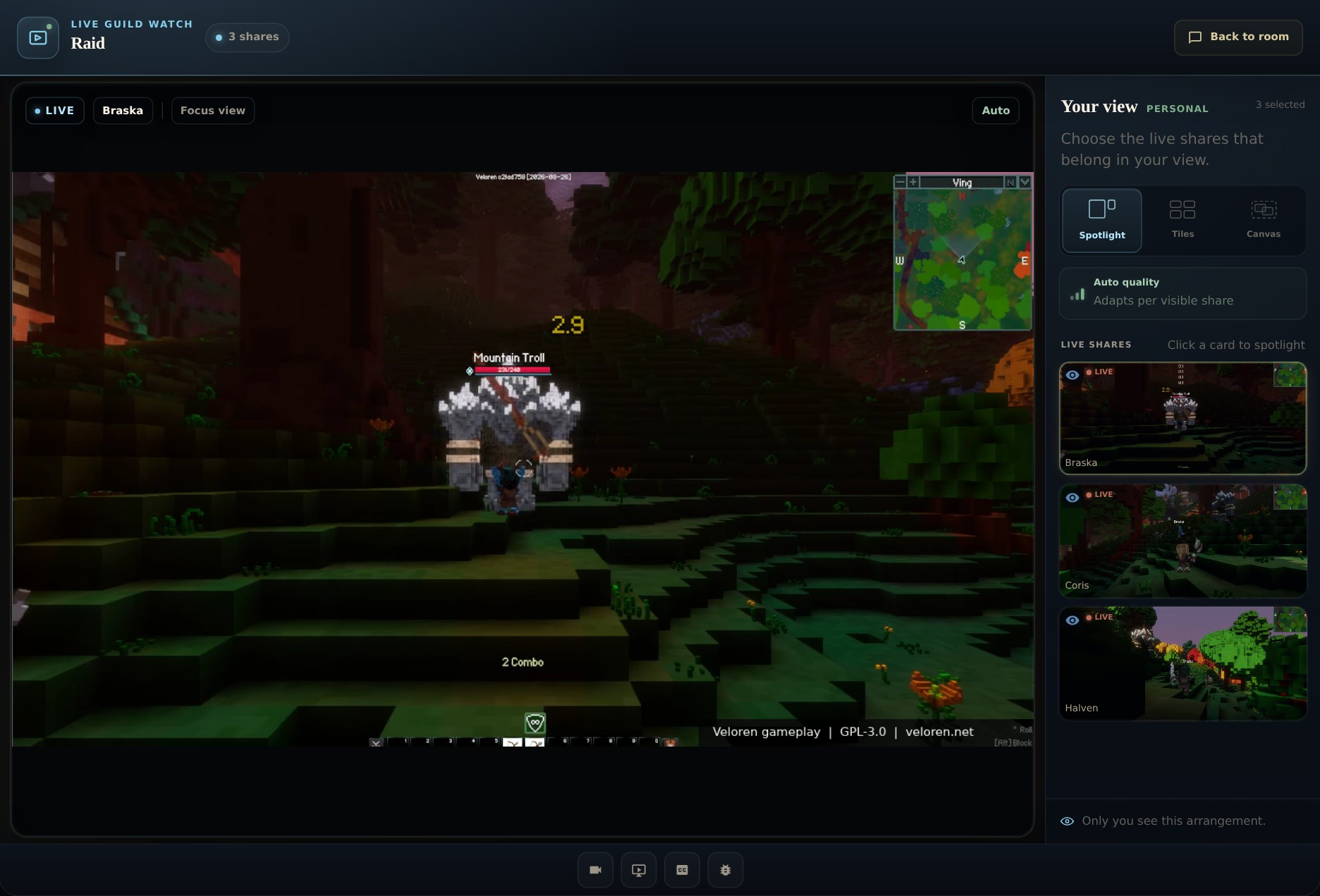
The Your view panel lists the available shares and the layout choices. This is where you decide what to watch.
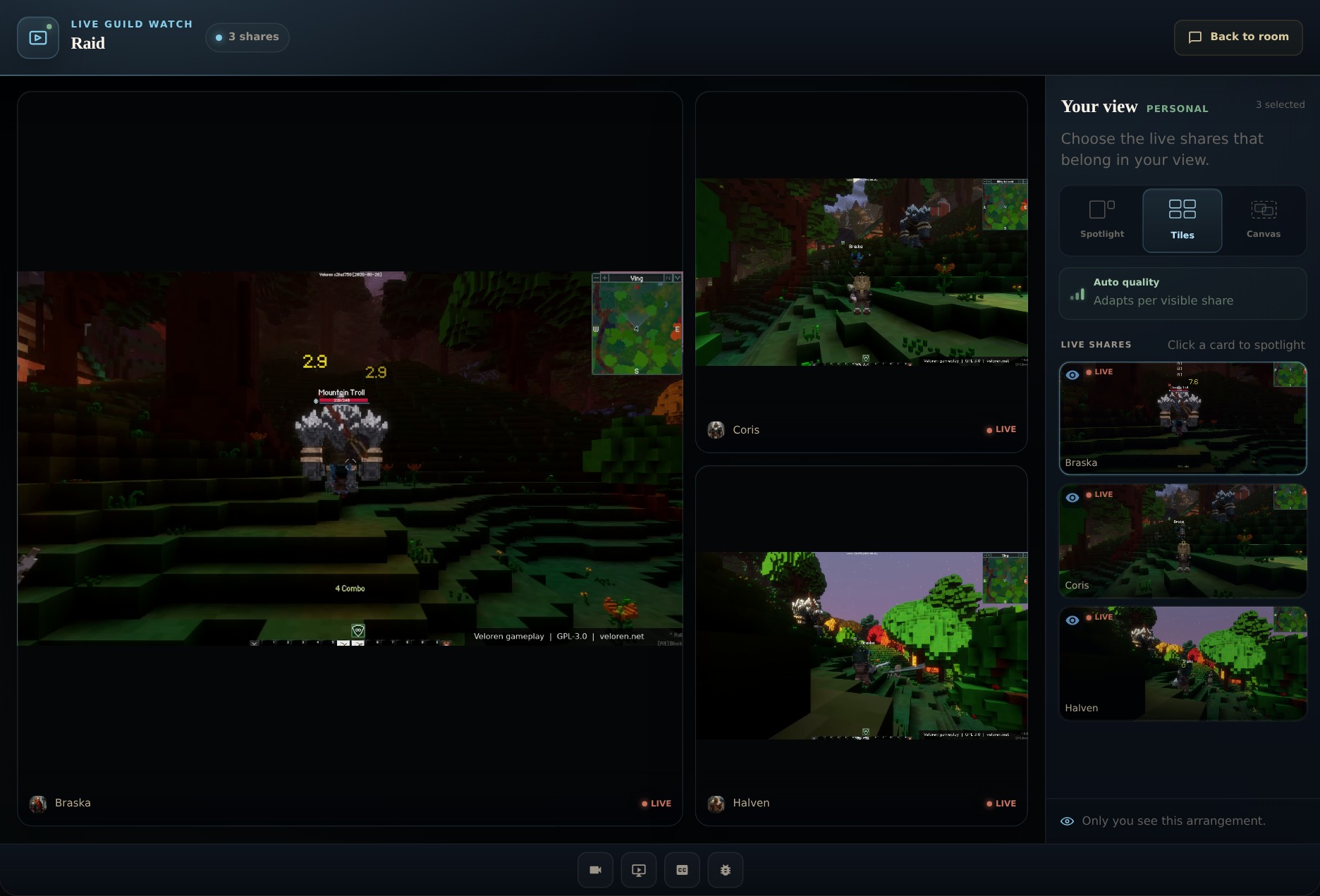
Match the layout to the moment.
Build your personal Canvas.
- Choose Canvas in the Your view controls.
- Drag a stream to reposition it. Use its lower-right resize handle to change its size.
- For a quick starting point, choose Even, Left Focus, or Top Focus in Canvas tools.
- Keep the views that matter to your role in the easiest places to see. Choose Tiles whenever you want the automatic layout again.
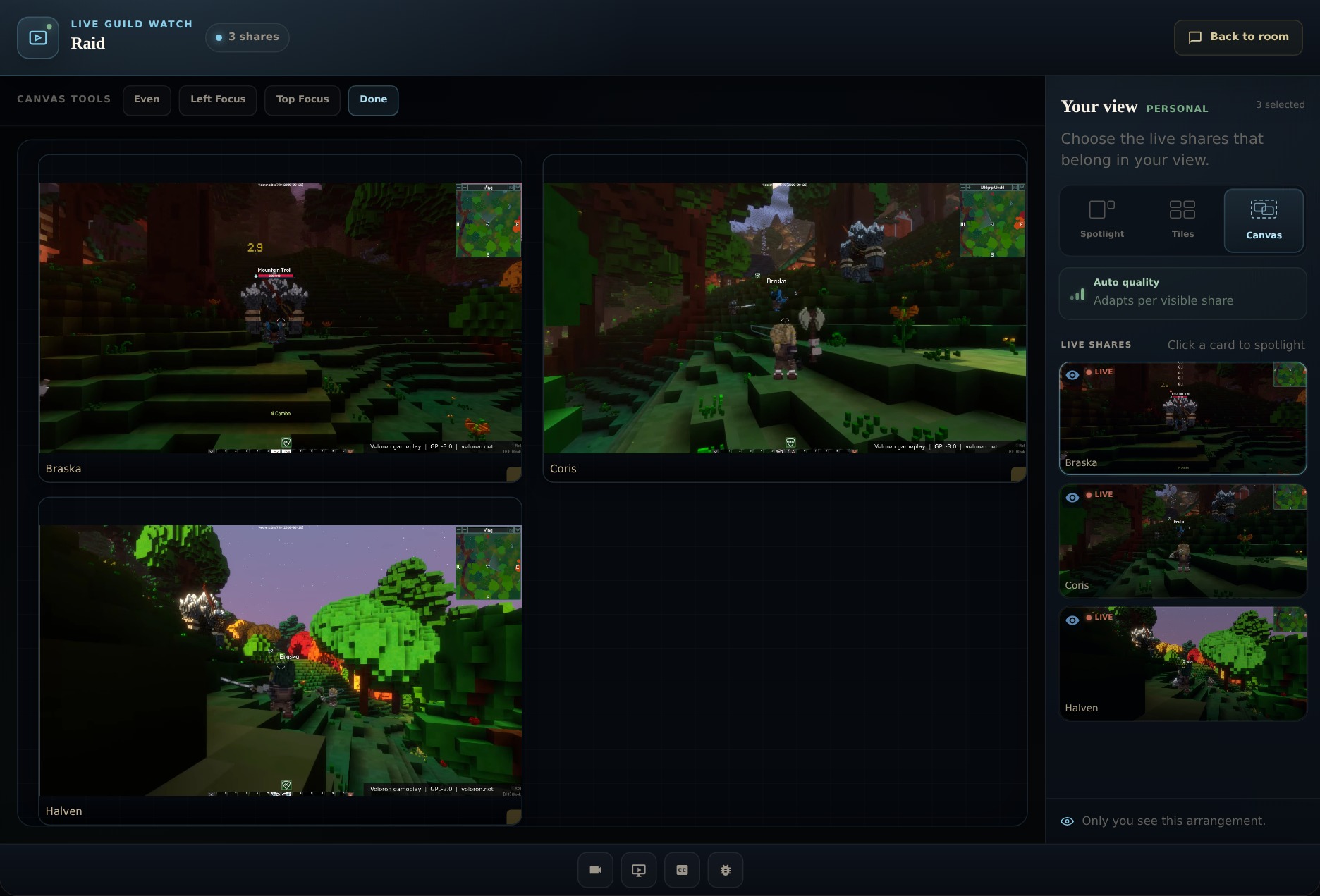
Show the shares you need.
Use the eye control on a share in Your view to hide it. To bring it back, choose the hidden share’s watch control, labeled Watch [name]’s stream.
Hiding a share stops showing it in your personal arrangement. It does not end the broadcaster’s stream for the rest of the room.
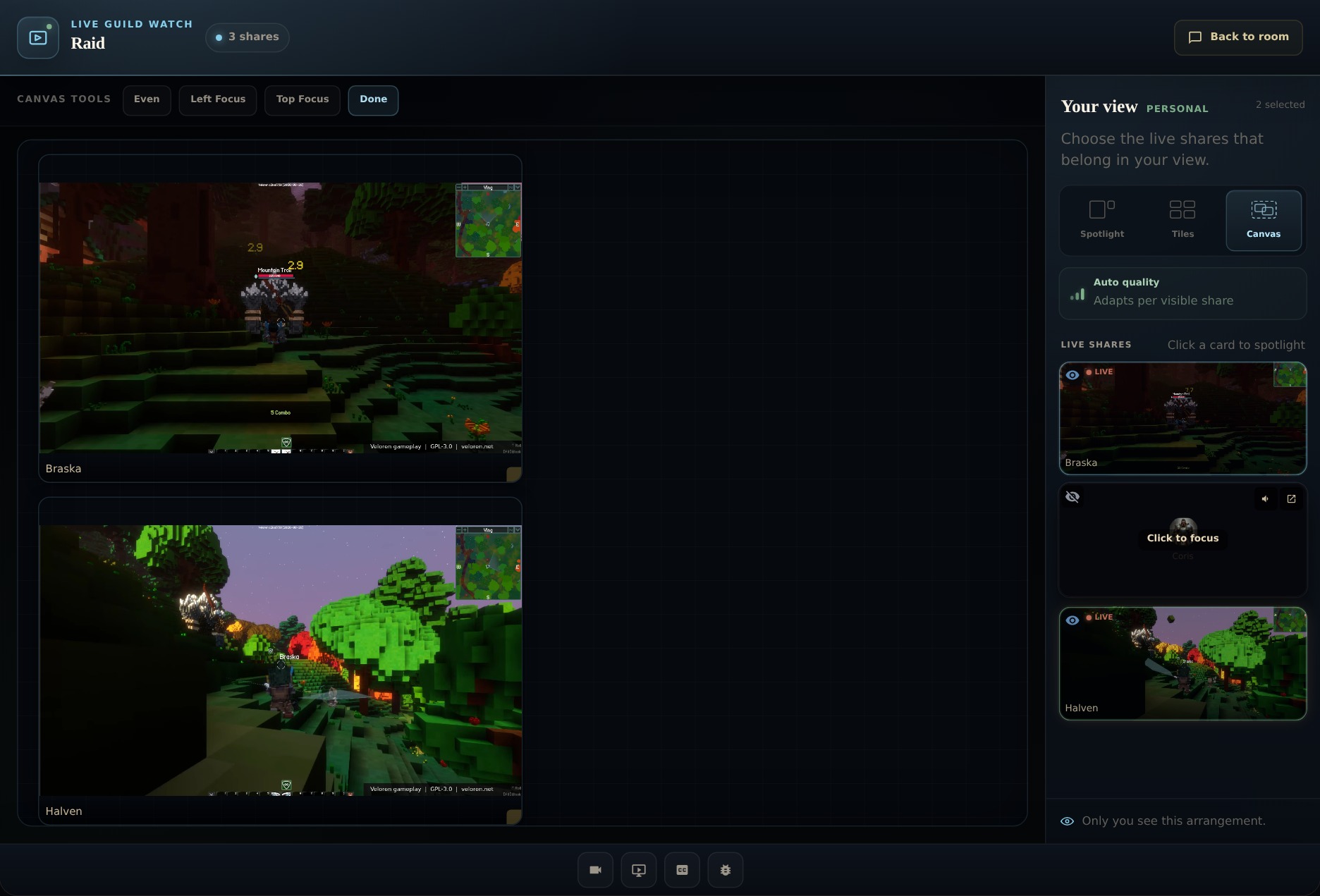
Keep the view useful.
I do not see Spotlight, Tiles, or Canvas.
Open a live share from the voice room first. The layout controls appear with the watch view when shares are available. A room without active shares has no streams to arrange.
A stream disappeared from my view.
Check the share in Your view. If it is hidden, choose its watch control to restore it. If the broadcaster stopped sharing or left, there is no live share to restore.
Can someone else change my arrangement?
The layout controls are personal. Other viewers choose their own layout. The shares available to everyone can still change as people start or stop broadcasting.
Several streams are too much for my device.
Try Spotlight or hide shares you do not need. Stream playback also depends on the source stream, your connection, and your device. The demonstration footage illustrates the controls; it is not a performance benchmark.
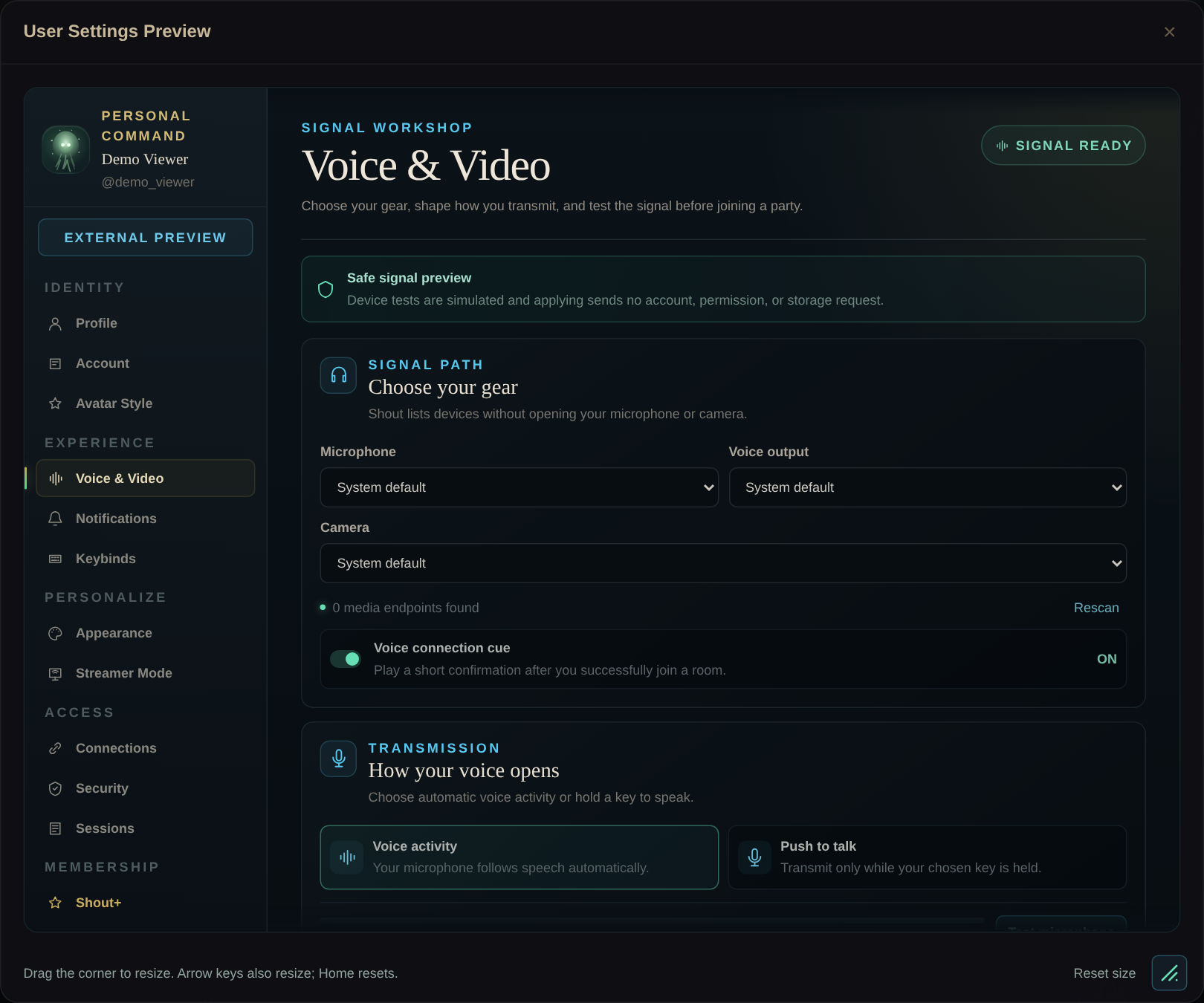
Pictures show Shout’s real interface with a demonstration guild and profile. Demo settings use “Apply preview” and simulate device tests; your signed-in account uses its live settings. Controls can vary with client version and permissions.